
Before clients can book time with you, you need to define when you’re available for meetings. This ensures appointments are only booked during your working hours.
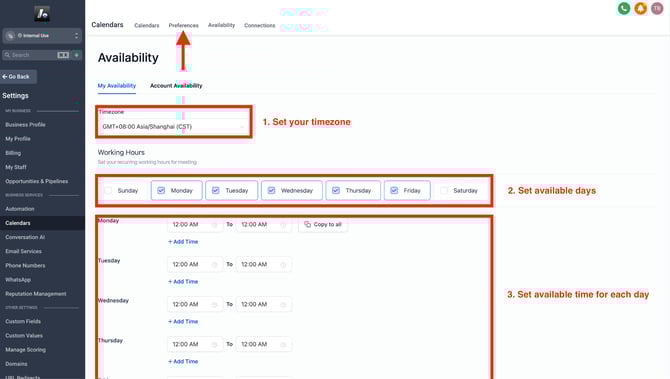
🌍 Select Your Timezone
Start by going to Calendar Settings → Preferences.
-
Choose your correct timezone — this ensures appointment times are displayed accurately for both you and your clients.
-
If your country isn’t listed, choose another timezone with the same GMT offset.
-
Example: For Hong Kong, select a GMT+08 timezone if "Hong Kong" isn't shown.
-
If you're not sure of your timezone in GMT, you can look it up using this website
📅 Set Working Days

Under Working Hours, check the boxes for the days of the week you’re available.
You can configure different schedules for different days based on your needs.
⏰ Set Time Ranges
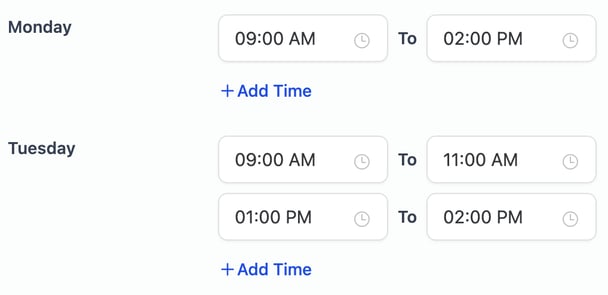
You can define multiple time blocks per day.
For example:
-
9:00 AM – 11:00 AM
-
1:00 PM – 3:00 PM
This allows for breaks in between, such as lunch or admin time, and prevents clients from booking during those gaps.