
Once you've created a booking calendar, you can fine-tune its settings to control everything from who it's assigned to, to what your clients see when booking.
⚙️ Accessing a Calendar’s Settings
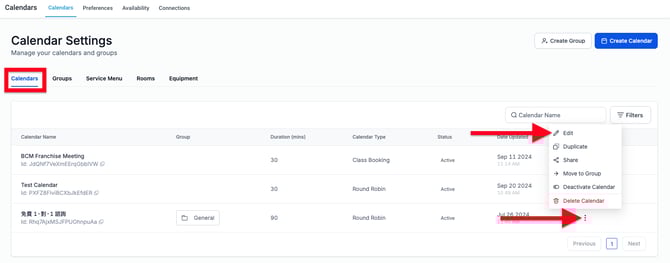
- Go to Calendar Settings → Calendars
- Find your calendar in the list
- Click the Action Dropdown (⋮) on the far right
- Select Edit to access that calendar’s full settings
📝 Calendar Settings Sections
Each calendar has 5 main settings sections:
📄 1. Meeting Details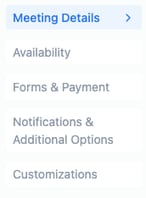
-
Set calendar name, description, and logo
-
Assign team members to be booked
-
Add optional buffer times or meeting durations
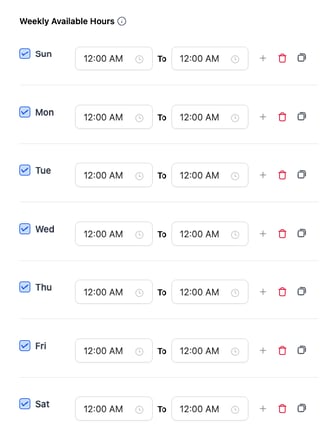
🕒 2. Availability
-
Set calendar-specific availability (independent from user availability)
-
Best used for special-purpose calendars like events or limited sessions
-
If not needed, keep it open 24/7 and let user availability handle booking limits
📋 3. Forms & Payments
-
Customize booking forms (name, email, phone, meeting notes)
-
To add questions, create a new form at Sites → Forms, then assign it to this calendar
-
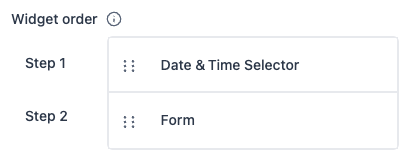
Change booking flow (e.g., choose time first or fill form first)
-
Require payment for bookings (ideal for paid services)
-
Customize confirmation message or redirect to a specific page after booking
✉️ 4. Notifications & Additional Options
-
Enable/disable acknowledgment emails for:
-
Contact
-
Assigned user
-
Additional email addresses
-
-
Want a custom email instead?
Set up a Workflow in Automations to send custom messages when a booking occurs -
Control reschedule/cancel options and time restrictions
🎨 5. Customizations
-
Upload a calendar cover image
-
Customize colors and button text
-
Show/hide specific calendar details (like title or description)
💾 Save Your Settings
After making any changes, don’t forget to click Save in the top-right corner to apply your updates.