
To let clients schedule time with you or your team, you’ll first need to create a booking calendar.
Depending on your plan, you may already have a few pre-built calendars available to customize. You can also create new ones at any time.
➕ How to Create a Calendar
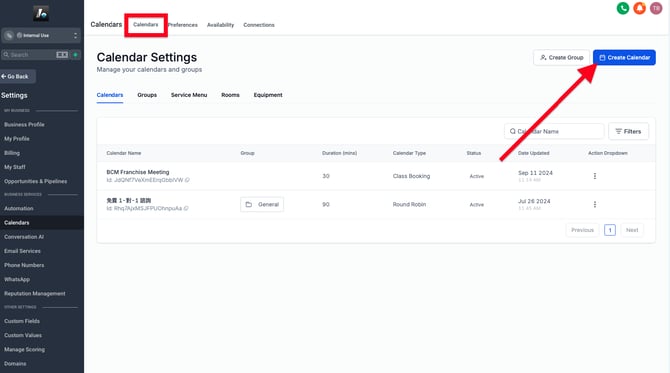
-
Go to Calendar Settings → Calendars → Create Calendar
-
Choose a calendar type from the list (see below)
-
Enter basic setup info like name, team member(s), and availability
-
Click Confirm to save your calendar
You can adjust the details later in the calendar’s full settings.
📂 Calendar Types Explained
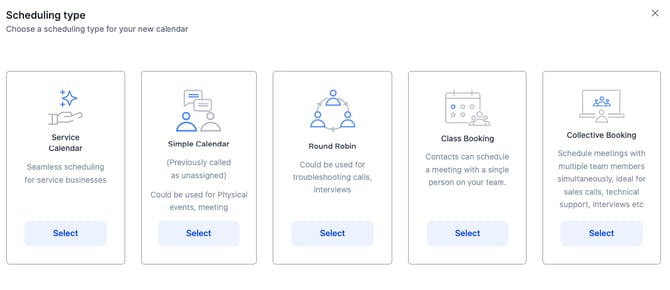
-
Service Calendar
For booking appointments tied to a specific service — great for salons, coaches, consultants, etc. -
Simple Calendar
Used for one-on-one bookings with a specific person — perfect for personal consultations. -
Round Robin
Rotates meetings among a team group — distributes bookings evenly and automatically assigns availability. -
Class Booking
Allows multiple participants to book the same time slot — ideal for classes or group sessions. -
Collective Booking
Books only when all assigned team members are available — great for group interviews or internal team syncs.
💡 Tip: If you’re unsure which one to choose, Round Robin is usually the most flexible option.