
The Conversations page is where you can interact with contacts one-on-one and view your full communication history.
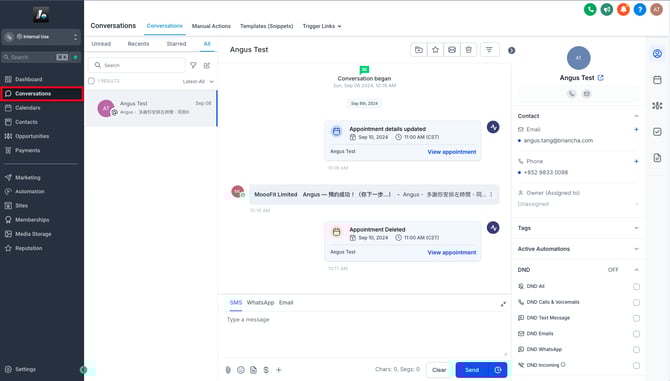
This screen is divided into three sections to help you stay organized:
-
Left: Conversation List
-
Middle: Message Thread
-
Right: Contact Info Panel
📄 Conversation List (Left Panel)
 On the left side of the screen, you'll see a list of all active conversations.
Each contact card includes:
-
-
-
-
-
-
-
Contact name
-
Latest message preview
-
Timestamp of the most recent message
-
Number of unread messages (if any)
-
-
-
-
-
-
You can:
-
-
-
-
-
-
-
Click any contact card to view that conversation
-
Use the filters at the top to adjust which conversations are shown and how they're sorted (e.g., newest messages first)
-
-
-
-
-
-
✉️ View & Send Messages (Middle Panel)
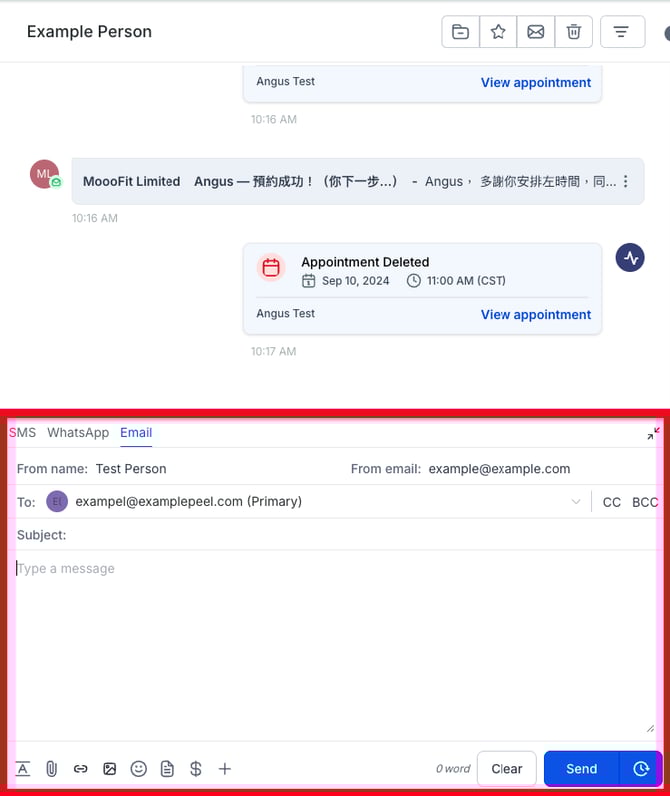
The middle section shows the entire message history between you and the selected contact, including:
-
Timestamps
-
Delivery channels (e.g., WhatsApp, email)
To send a new message:
-
Go to the bottom of this section
-
Select your preferred channel (email, WhatsApp, SMS, etc.)
-
Compose your message
-
Click Send — or use the clock icon to schedule it for later
📝 Note: Some channels (like WhatsApp) have additional rules such as requiring a pre-approved message templates to start new conversations with contacts.
👤 Contact Information Panel (Right Panel)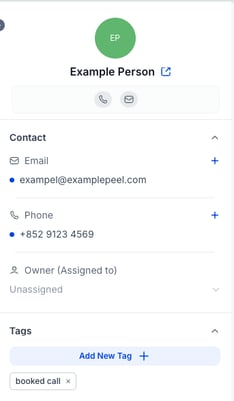
On the far right, you’ll find basic info about the selected contact, including:
-
Name
-
Email
-
Phone number
-
Tags
You can edit contact details directly in this panel without leaving the conversation.