
🧭 Navigation
When you first log in, you’ll see a familiar layout:
A navigation menu on the left, and your main content area on the right.
This layout is your central command center — giving you access to all the features you need to manage your business.
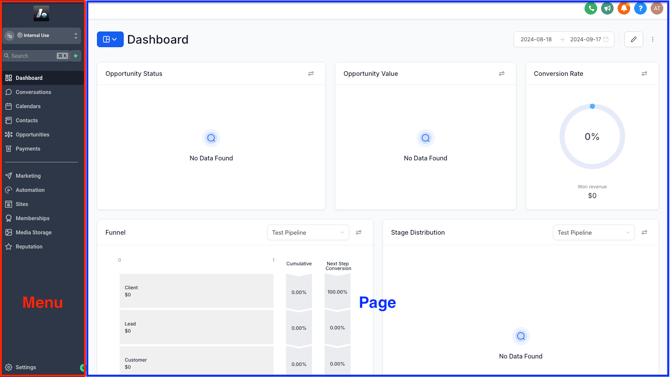
📂 Main Menu (Left Sidebar)
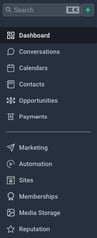 The main menu on the left side of your screen is your gateway to all the platform’s core features — like Contacts, Calendars, Funnels, Automation, and more.
When you click on a feature in this menu, the corresponding page loads in the main content area on the right.
💡 Note: The exact order and list of menu items may vary depending on your subscription plan.
🧩 Submenus (Top of Page)
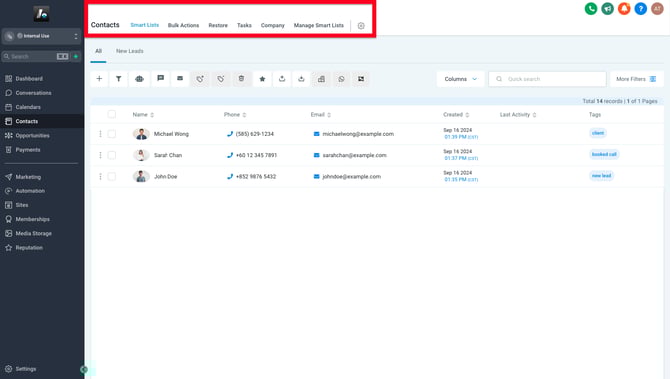
Some features, such as Contacts, include subpages. When you open one of these features, a submenu appears at the top of the right-hand panel.
These submenus help you move between sections like Smart Lists, Contact Views, or Bulk Actions — all within the same main feature.
⚙️ Settings Menu (Switch from Main Menu)
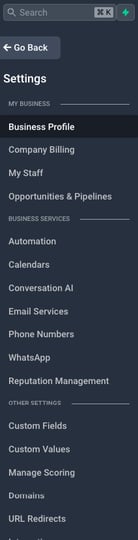 Need to adjust your account settings or manage advanced features?
Click the Settings button in the lower-left corner of the screen. This will switch your Main Menu into the Settings Menu.

The Settings Menu includes tools you might not use every day, but are essential for setup and customization — such as:
-
-
-
-
Business Info
-
Domains
-
Billing
-
Integrations
-
-
-
To return to the main feature menu, just click the "← Go Back" at the top of the Settings Menu.
